

About WooCommerce
WooCommerce offers integrated marketing, selling and fulfillment which makes the selling easier for Online sellers. ShipVista helps you to save both time and money on shipping your orders. By simply connecting your WooCommerce store with ShipVista, you can easily manage shipping and fulfillment of WooCommerce orders and send tracking information to the customer.
Integrate WooCommerce Account on ShipVista
Integration Requirements:
- An active account with WooCommerce.
- WordPress Domain access
Follow the steps below to connect you WooCommerce to ShipVista.
Ensure that you are logged into the app and can see the main dashboard.
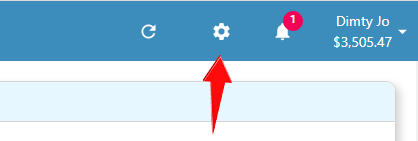
Click the setting icon at the top right hand corner of the window to go to the settings pages.
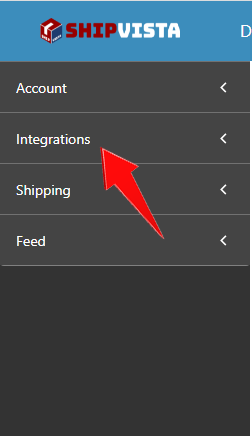
Click the 'Integrations' button on the left hand side accordian to expand the integrations panel.
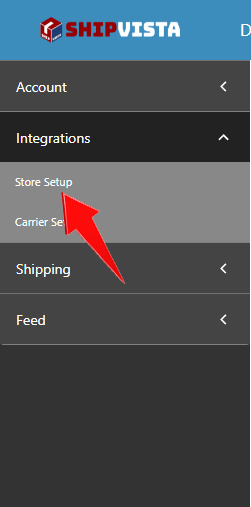
Select the 'Store Setup' option in the panel that opens.
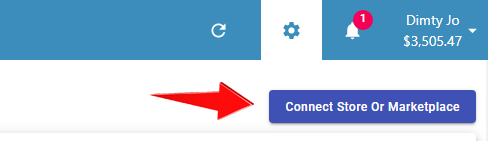
Click the 'Connect Store Or Marketplace' button near the top right hand corner of the screen.
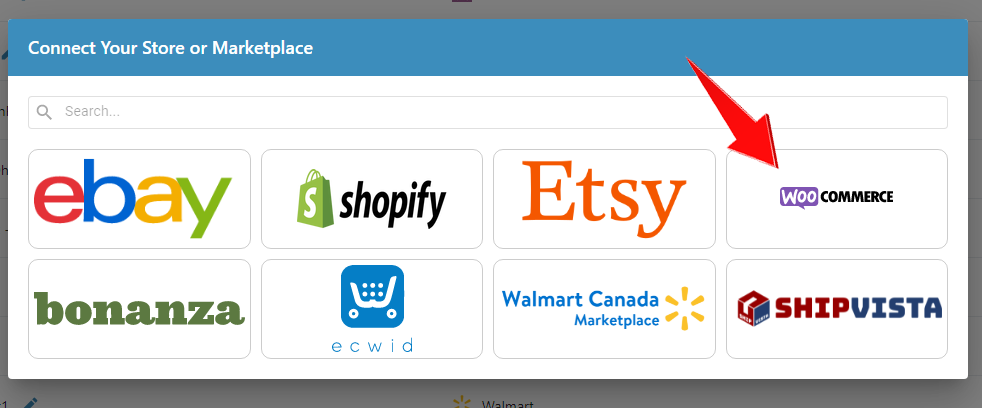
In the dialog that opens, select the WooCommerce logo and a form should open.
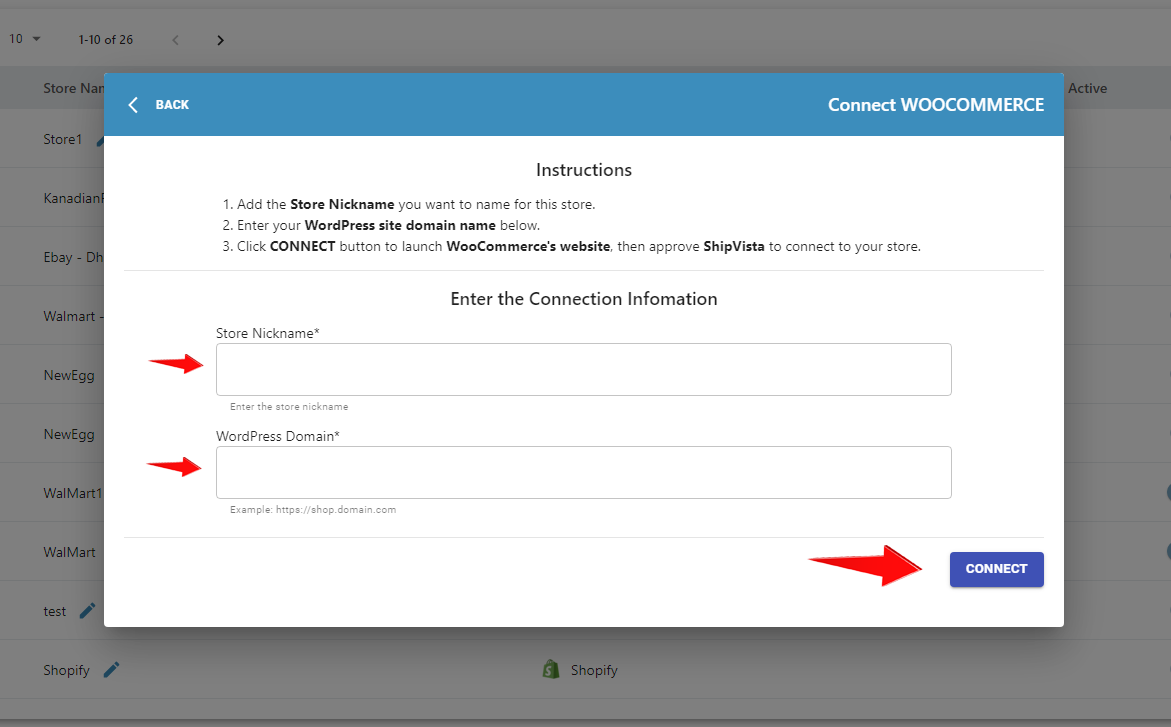
In the form, enter the correct information and proceed by clicking the 'Connect' button at the bottom of the form.
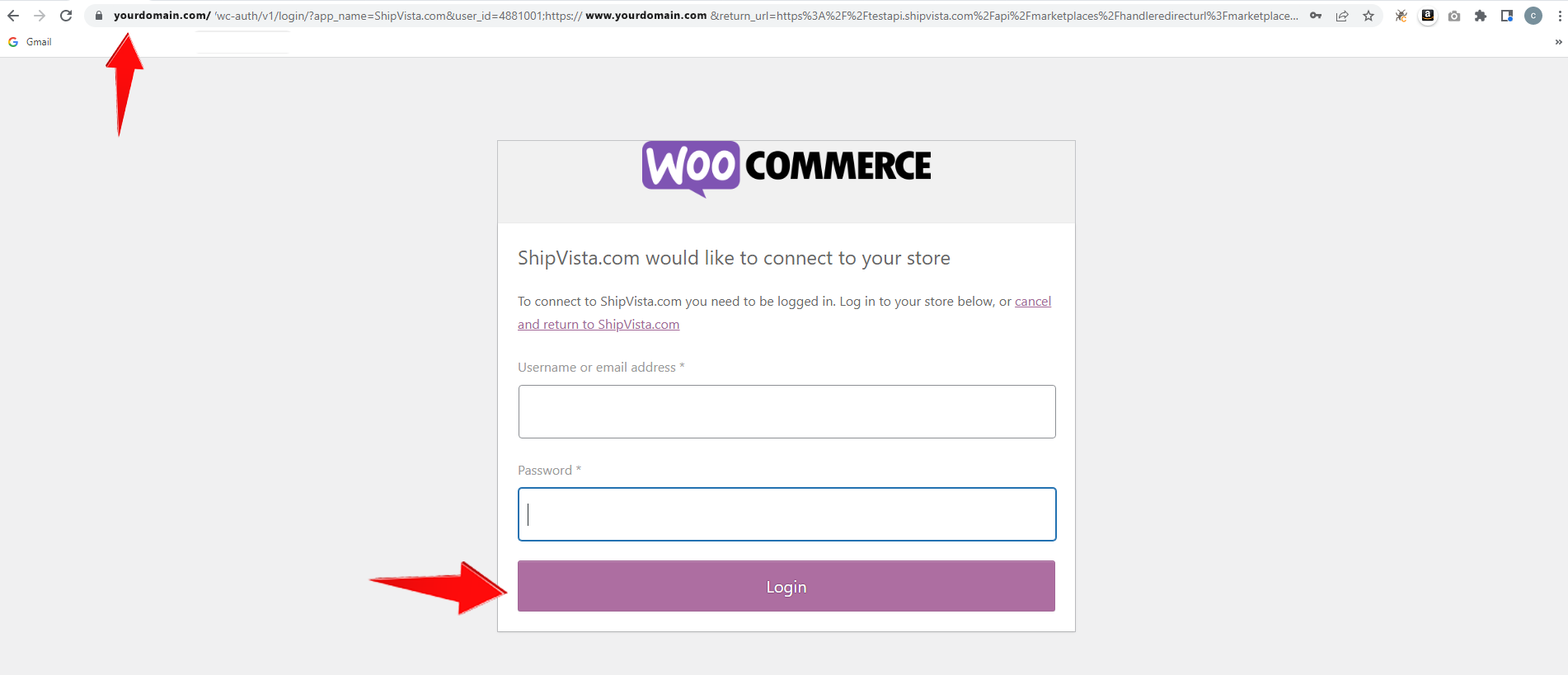
You would be redirected to a page to login to WooCommerce. Please login.
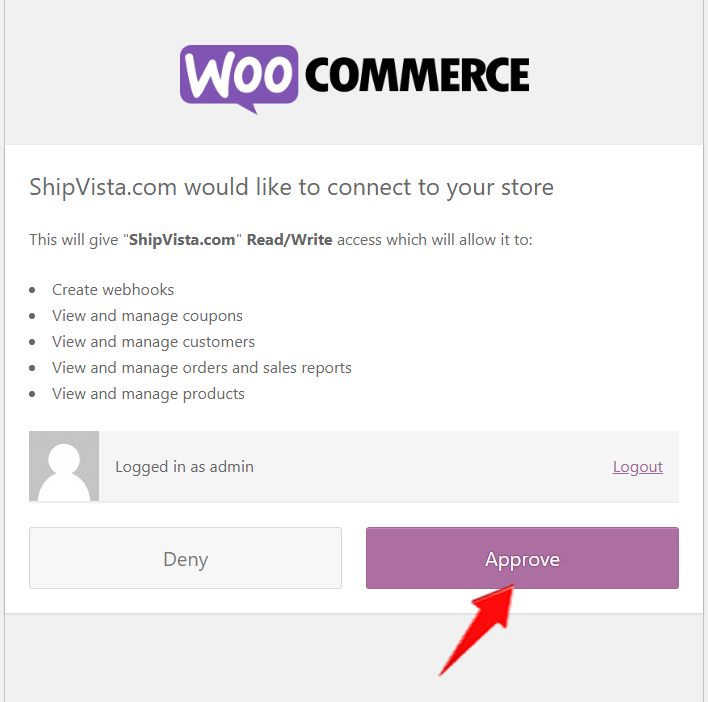
You will then be prompted to give certain permissions to ShipVista. Click Approve.
Back on the ShipVista dashboard, your WooCommerce store should be successfully added.

ShipVista's integration with WooCommerce supports the following standard features:
Common Integration Features
| Feature | Supported? |
|---|---|
| Custom Statuses | Yes |
| Customer Emails | Yes |
| Customer Phone Numbers | Yes |
| Requested Service | Yes |
| Payment Method | Yes |
| Internal Notes | Yes |
| Order Weight | Yes |
| Item Weight | Yes |
| Item Options | Yes |
| Item Warehouse Location | Yes |
Sent with Shipment Update
| ShipVista Status | WooCommerce Status |
|---|---|
| Awaiting Payment | Pending |
| Awaiting Shipment | Processing |
| Shipped | Completed |
| Cancelled | Cancelled |
| On Hold | On-hold |
Sent with Shipment Update
| Field | Supported? |
|---|---|
| Status Updates | Yes |
| Tracking Number | Yes |
| Carrier | Yes |
| Service | Yes |
| Carrier Fee | Yes |
| Note to Buyer | Yes |
| Item Information | Yes |
| Allows Partial Notify | Yes |
| Alert the selling channel if only part of an order is shipped? | Yes |
It is advisable to import orders through ShipVista only.
Please contact our customer care team if any issues arise. Visit the support page for contact details.